Getting Started
The BBj Language Support plugin provides comprehensive IDE support for BBj development in IntelliJ IDEA. This guide will help you get up and running quickly.
Prerequisites
Before installing the plugin, ensure you have:
- IntelliJ IDEA version 2024.2 or higher (Community or Ultimate)
- BBj version 25.00 or higher installed
- BBjServices running locally (required for full functionality)
- Java 17 or higher (for the Java interop service)
- Node.js 18 or higher (auto-detected from PATH, or auto-downloaded by plugin)
Installation
From JetBrains Marketplace
- Open IntelliJ IDEA
- Go to Settings > Plugins > Marketplace tab
- Search for "BBj"
- Click Install on "BBj Language Support"
- Restart the IDE when prompted
Alternatively, install directly from the JetBrains Marketplace.
From .zip File
For offline installation:
- Download the
.zipfile from GitHub Releases - Open IntelliJ IDEA
- Go to Settings > Plugins
- Click the gear icon and select Install Plugin from Disk...
- Select the downloaded
.zipfile - Restart the IDE when prompted
Initial Configuration
After installation, configure the plugin to work with your BBj installation:
BBj Home
- Go to Settings > Languages & Frameworks > BBj
- The plugin automatically detects BBj Home if installed in a standard location
- If not found, set the path manually using the browse button
- The plugin validates the path by checking for
BBj.propertiesin thecfg/subdirectory
Node.js Runtime
Node.js is required for the language server to function:
- The plugin automatically detects Node.js from your system PATH
- If not found, the plugin can auto-download Node.js 18 or higher
- You can manually set the Node.js path in Settings > Languages & Frameworks > BBj if needed
Enable BBj Language Service
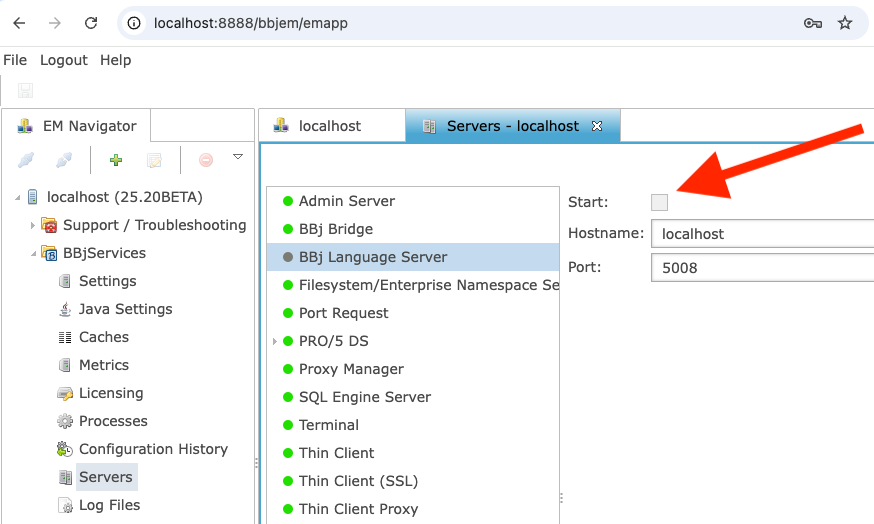
BBj 25.00 introduces a new server component, the BBj Language Service. You must enable it in Enterprise Manager:
- Open BBj Enterprise Manager
- Navigate to the server settings
- Enable the "BBj Language Service"
Testing Your Setup
- Create a new file with a
.bbjextension - Type some BBj code:
print "Hello, World!"
- You should see:
- Syntax highlighting
- Code completion suggestions when typing
- Validation errors if any syntax issues exist
- BBj Language Server status widget in the status bar showing "Ready"
Running Your First Program
With a .bbj file open:
- Press
Alt+Gto run as a GUI application - Or right-click in the editor and select Run As BBj Program
- Or press
Alt+Bto run as a BUI web application (requires EM authentication first) - Or press
Alt+Dto run as a DWC application (requires EM authentication first)
Troubleshooting
Language Server Not Starting
If features like completion aren't working:
- Check the BBj Language Server tool window in the bottom panel for error output
- Verify Node.js is available and accessible
- Try Tools > Restart BBj Language Server
Java Integration Not Working
The Java interop service requires:
- BBjServices to be running
- Proper BBj Home configuration
- Valid classpath configuration
Check the Java Interop status bar widget for connection state (Connected/Disconnected/Checking).
Missing Configuration Banners
The plugin displays editor banners to help with configuration:
- Missing BBj Home banner - Set BBj Home in Settings
- Missing Node.js banner - Install Node.js or let the plugin download it
- Java Interop Unavailable banner - Start BBjServices or check configuration
- Server Crash banner - Check the BBj Language Server tool window for errors
Follow the banner instructions to resolve configuration issues.
Next Steps
- Learn about Features available in the plugin
- Configure Plugin Settings
- Explore Run Commands for executing BBj programs