Getting Started
The BBj Language Server provides comprehensive IDE support for BBj development in Visual Studio Code. This guide will help you get up and running quickly.
Prerequisites
Before installing the extension, ensure you have:
- Visual Studio Code version 1.101.0 or higher
- BBj version 25.00 or higher installed
- BBj version 26.03 or higher for live compiler diagnostics (the compiler's own syntax errors appearing as you type, without saving) and for formatting and Denumber; an earlier BBj simply keeps the save-time compiler check
- BBjServices running locally (required for full functionality; formatting and Denumber need it)
- Java 17 or higher (for the Java interop service)
Installation
From VS Code Marketplace
- Open VS Code
- Go to the Extensions view (
Ctrl+Shift+XorCmd+Shift+X) - Search for "BBj"
- Click Install on "BBj Programming Language Support"
Alternatively, install directly from the VS Code Marketplace.
From VSIX File
If you have a .vsix file:
- Open VS Code
- Go to Extensions view
- Click the
...menu and select "Install from VSIX..." - Select the downloaded
.vsixfile
Initial Configuration
After installation, configure the extension to work with your BBj installation:
Enable BBj Language Service
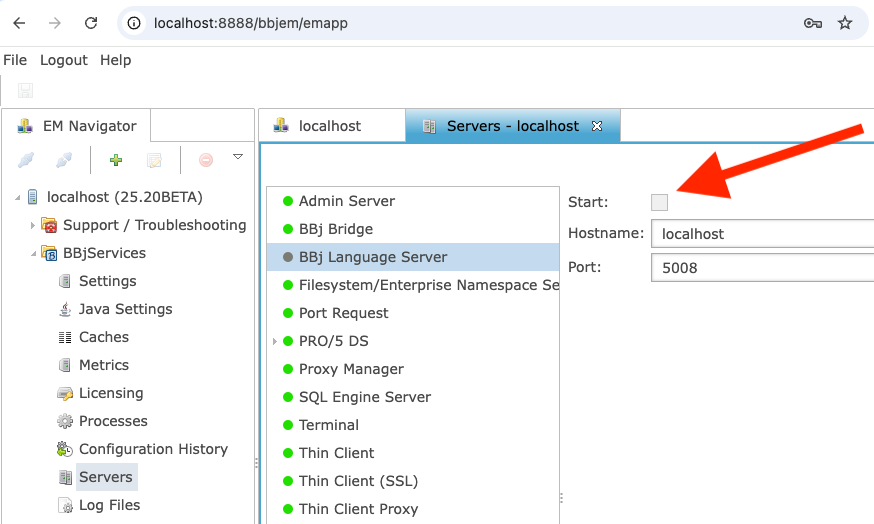
BBj 25.00 introduces a new server component, the BBj Language Service. You must enable it in Enterprise Manager:
- Open BBj Enterprise Manager
- Navigate to the server settings
- Enable the "BBj Language Service"
Setting BBj Home
- Open VS Code Settings (
Ctrl+,orCmd+,) - Search for "bbj.home"
- Set the path to your BBj installation directory (e.g.,
/opt/bbjorC:\bbj)
Alternatively, add to your settings.json:
{
  "bbj.home": "/path/to/bbj"
}
Configuring Classpath
To enable Java class completions, configure the classpath:
{
  "bbj.classpath": "bbj_default"
}
The extension will automatically detect classpath entries from your BBj installation. Run the command "BBj: Show Available Classpath Entries" to see all available options.
To override the classpath and PREFIX directories for a single project, add a
project.properties file to your workspace root. See
project.properties in the Configuration
guide for details.
Testing Your Setup
- Create a new file with a
.bbjextension - Type some BBj code:
print "Hello, World!"
- You should see:
- Syntax highlighting
- Code completion suggestions when typing
- Validation errors if any syntax issues exist
Running Your First Program
With a .bbj file open:
- Press
Alt+Gto run as a GUI application - Or press
Alt+Bto run as a BUI web application - Or press
Alt+Dto run as a DWC application
You can also right-click in the editor and select the run option from the context menu.
Troubleshooting
Language Server Not Starting
If features like completion aren't working:
The language server starts when the first BBj file (.bbj or a BBj config file) opens in a window; a window with no BBj file does not start it.
- Check the Output panel (
View>Output) - Select "BBj" from the dropdown
- Look for error messages
Java Integration Not Working
The language server connects to the Java interop service when it starts, and that requires:
- BBjServices to be running
- Proper
bbj.homeconfiguration - Valid classpath configuration
The Java interop service manages Java class completions and method signatures automatically.
Next Steps
- Learn about Features available in the extension
- Configure Extension Settings